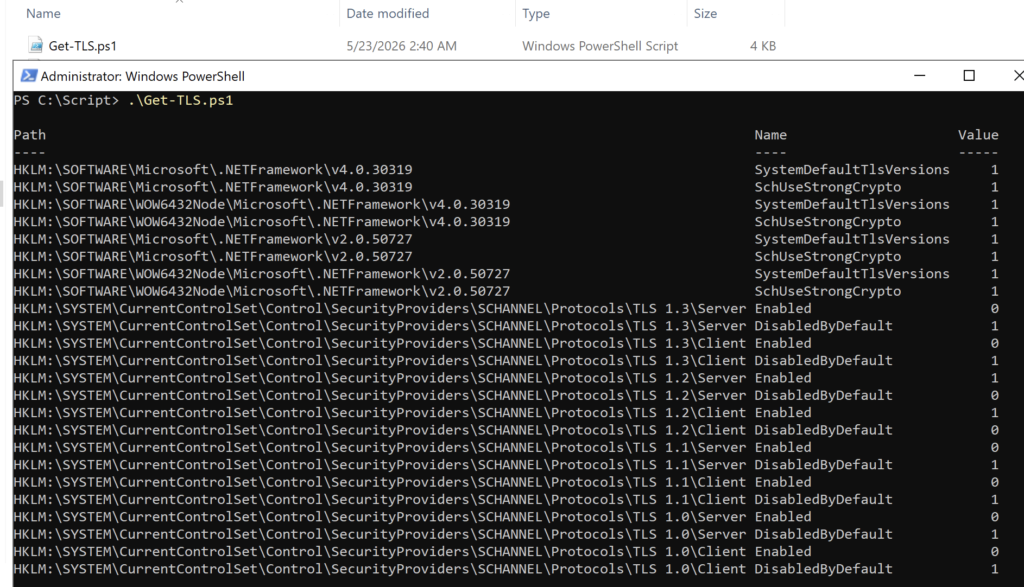
TLS 1.2 is the current standard protocol for securing network communications on Windows Server environments, replacing older and less secure versions such as TLS 1.0 and TLS 1.1. Enabling TLS 1.2 is a critical step in maintaining compliance with modern security requirements and ensuring compatibility with cloud services, Microsoft 365, and most enterprise applications.
On Windows Server, TLS 1.2 can be enabled manually through registry settings, but this process can be automated and standardized using PowerShell. By leveraging PowerShell scripts, administrators can quickly configure system-wide security protocols, reduce configuration errors, and ensure consistent deployment across multiple servers. This approach is especially useful in enterprise environments where security hardening and automation are key priorities.
Windows Server TLS best practice
Only TLS 1.3 and TLS 1.2 are approved. The protocol TLS 1.3 is only available to enable in Windows Server 2022 or newer.
| Protocol | Status |
| TLS 1.3 | Active |
| TLS 1.2 | Active |
| TLS 1.1 | Deprecated |
| TLS 1.0 | Deprecated |
| SSL 3 | Deprecated |
| SSL 2 | Deprecated |
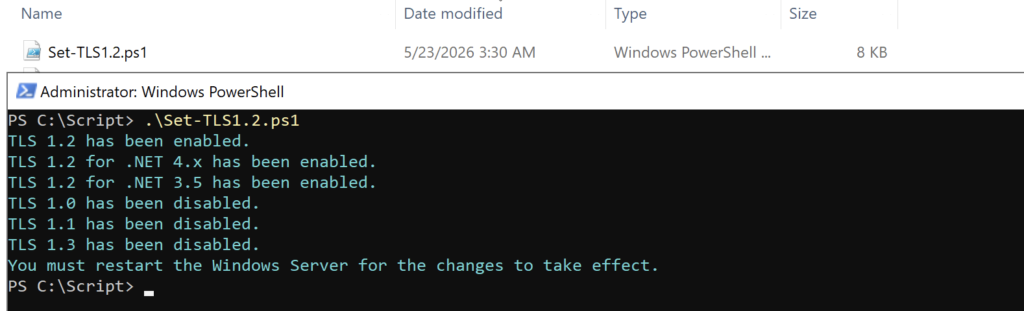
The Set-TLS1.2 PowerShell script will set the best practice TLS settings for Windows Server:
- Enable TLS 1.2
- Enable TLS 1.2 for .NET 4.x
- Enable TLS 1.2 for .NET 3.5
- Disable TLS 1.0
- Disable TLS 1.1
- Disable TLS 1.3
You must restart the Windows Server for the changes to take effect.
Verify that TLS 1.2 is enabled on Window Server